
Pulse users may receive automated emails and you may need to verify if they have received them. The following directions guide you to check automated emails received by users.
TIP: If users are unsure which types of automated emails are sent, visit the Automated Emails in Pulse article.
Checking Auto-Generated Emails
To see if an auto-generated email was sent to a user, you have to first go to the user's Communication log. Begin by searching for the user in the Users tab of Pulse.

Click the Full Name hyperlink to open the user record.

By default, the user’s Information record displays. Click the Communications tab.

The user’s Communications log displays. Use the search tools to locate specific information.

Click the icon in the Actions column next to the auto-generated email you wish to view.
NOTE: Refer to the Date, From, Sent To Email, and Subject columns for additional information about the email.

The full content of the email displays.
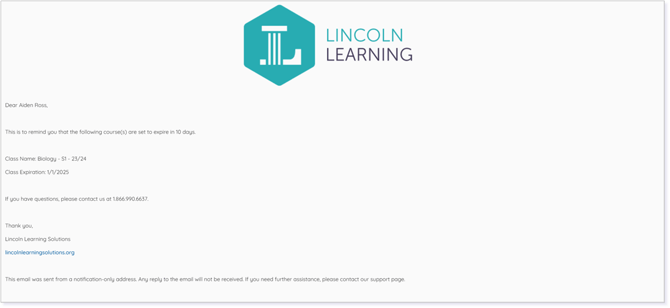
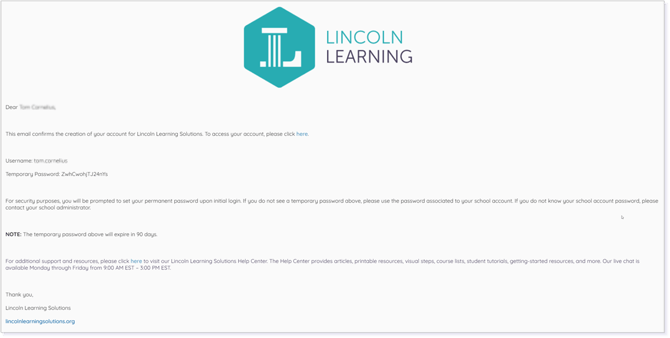
IMPORTANT: Two common auto-generated email notifications are the Account Creation Notification (i.e., notification sent when a user account is created containing login information, the link to the URL, username information, and a temporary password when applicable) and the Enrollment Notification (i.e., details about a user enrollment).
NOTE: The Account Creation Notification can be turned off by user type. Contact your Client Success Specialist for more details.
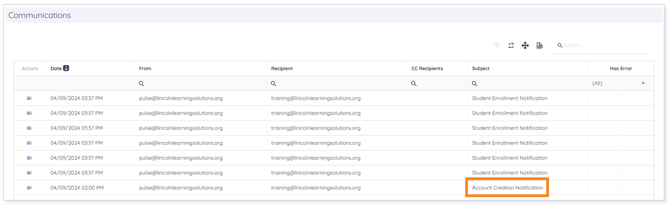
NOTE: The Account Creation Notification only contains a temporary password when no password is created and assigned to the user upon creation.
TIP: Copy and paste the email’s contents into a Word document to send as an attachment to any individuals wishing to view it (e.g., parent, guardian, mentor, or administrator who is having issues receiving the communication via email).
Please note the images found in this resource may not match your screen. Access and/or features may vary based on client contract.
© 2025 Lincoln Learning Solutions. All rights reserved.