
Districts using their own teachers need grades to be finalized even if a student does not meet all the criteria for automatic final grade submission in Buzz.
If a student does not meet the auto-criteria (e.g., they are failing or have incomplete work), a District Representative/Mentor must manually verify and request the grade.
Select a link below to skip to a specific section:
- Step 1: Verify Progress in Buzz
- Step 2: Handle Incomplete Work
- Step 3: Accommodation Review
- Step 4: Finalizing in Buzz
The video below explains the steps to manually verify a student is ready for finalization on Buzz.
Click the Play button to view.
IMPORTANT: These steps are from the viewpoint of an Observer within Buzz.
Step 1: Verify Progress in Buzz
- Navigate to Grades in the Buzz Observer app.
- Ensure Gradable Progress is at 100%.
- Check for Resets:
- If a reset icon (green check mark and arrow) exists, decide if the student should complete it.
- Review Submission History and Teacher Feedback to verify the timing, method, and scoring of student attempts.
- Contact the student if a retry opportunity needs to be completed before finalization.
IMPORTANT: Once finalized, courses cannot be reinstated for retries.
Step 2: Handle Incomplete Work
Decide how to treat unsubmitted assessments:
- Zero Out: Provides the most accurate final grade by receiving a zero for missing work.
- Excuse: Ignores missing work. The grade remains as-is, which may not reflect total course mastery because incomplete assessments will not be factored into the final score.
Step 3: Accommodation Review
Ensure all IEP, GIEP, or 504 Plan modifications were implemented before closing the gradebook.
Step 4: Finalizing in Buzz
When finalizing student grades using client teachers, teachers may need to take a few various steps.
Click on the links to jump to additional information:
- Finalizing Grades
- Enrollment Completion in Buzz
- Adjusting Your View
- Inaccurate Finalized Score in Buzz
Finalizing Grades
- Go to the Buzz Gradebook > Tools > Final Grades.
- Choose between "Assign minimum score to unscored activities" (Zero) or "Ignore unscored activities" (Excuse).

- Click Submit Selected.
NOTE:
- Zero Out: Provides the most accurate final grade by receiving a zero for missing work.
- Excuse: Ignores missing work. The grade remains as-is, which may not reflect total course mastery because incomplete assessments will not be factored into the final.
The video below shows the steps outlined above.
Click play to view the video.
Enrollment Completion in Buzz
Within Buzz, you can set Enrollment completion within the course settings.
NOTE: This is the default setting that is typically already selected unless changes have been made.
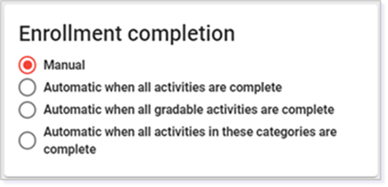
Review the full Enrollment completion article from Agilix to learn more.
Adjusting Your View
From the Home Page, click the Gradebook icon for the course in which you want to finalize student grades.
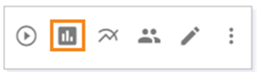
TIP: You can also navigate to the Gradebook by using the Main Menu, selecting the course, and then selecting the Gradebook for the course.
IMPORTANT: Before you finalize a student, make sure all submissions are graded and there are no outstanding items.
To edit visible columns, use the Options icon.

In the Visible columns tile, you can customize the student information that is visible in each column. Select Save after making your selections.

Correcting Inaccurate Finalized Score in Buzz
To correct an inaccurate finalized score, follow these steps to resubmit and sync the grade correctly:
- Set Enrollment to Active: Ensure the student's enrollment is active. If using Lincoln Learning Solutions, make this adjustment in Pulse.
- Audit the Gradebook: Locate the student in the Buzz Gradebook. Review their Grade Details to identify if scores were zeroed out (shown as 0) or excused (shown as blank). **See note below.
- Submission history is blank when the score is zeroed upon finalization.
- Score/Activity history should show Completed, with a below-passing score by the teacher. No submission will be recorded.
- Adjust the Final Grade:
- Navigate to Tools > Go to final grades.
- Select the correct radial button: Zero all unscored activities OR Excuse all unscored activities.
- Click Refresh, select the student, and click Submit Selected.
- Revert if Necessary: If the Revert to calculated score icon is present, select it and repeat the submission steps above.
IMPORTANT: Click on a zero score to determine if it was an earned score or a zeroed scored when finalization steps were taken.
Once you determine if the student's remaining assessments have been zeroed out or excused, navigate to the Final grades pop-up by going to the Gradebook, selecting Tools, and clicking Go to final grades.)
Next, look at the details. Verify the student was submitted.
VITAL STEPS: These actions must be taken to adjust the score.
- Ensure the radial dial (Zero all unscored activities OR Excuse all unscored activities) is selected.
- Click Refresh.
- Relocate the student, check the box, and click SUBMIT SELECTED.
IMPORTANT: If there is a Revert to calculated score icon, select this option and follow the above VITAL STEPS.
Please note the images found in this resource may not match your screen. Access and/or features may vary based on client contract.
© 2026 Lincoln Learning Solutions. All rights reserved.