
DISCLAIMER: This feature will be available November 9, 2026 after 4:30 PM EST.
What is the Lincoln AI Learning Assistant Teacher Dashboard?
The Lincoln AI Learning Assistant Teacher Dashboard provides data on student usage of the learning assistant across all courses, account details, and risk alerts. Teachers use this information to support students as they progress through Lincoln Learning courses.
Click the links below to jump to the following sections:
View the brief walkthrough video of the Learning Assistant Teacher Dashboard. A more indepth how-to video is forthcoming.
How to Access
Buzz
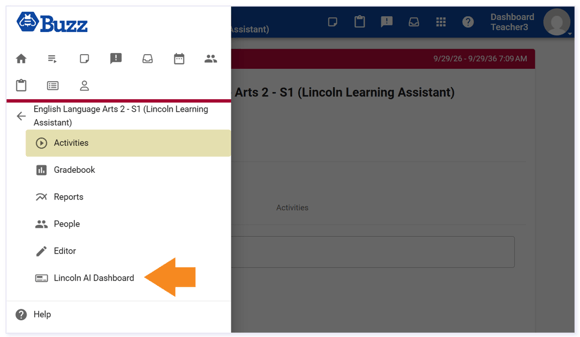
You can access the Learning Assistant Dashboard by opening the drop-down menu from the top left corner within a course landing page in Buzz. Then select Lincoln AI Dashboard.
IMPORTANT: While the dashboard is accessed via a Course, the information shown will not be filtered to any one course.
Click here to return to the top.
Dashboard Tab
In the Dashboard Tab, you will see Needs Attention and Recent Student Activity tiles, showing the top alerts and the most recent student sessions.
Click See All Alerts or View All Students to begin diving into details. The See All Alerts button jumps to the Alerts page. The View All Students button jumps to the Students page. You can use the left navigation panel to jump to these pages as well.
NOTE: A SAFETY category label may appear in some tables.
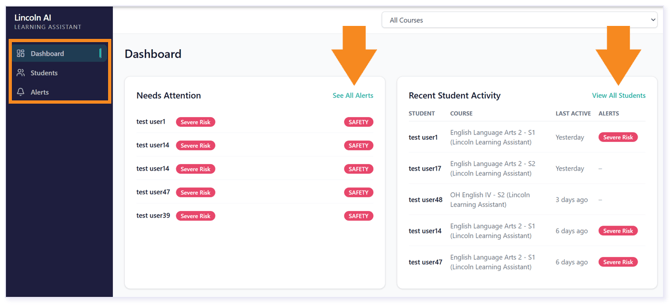
TIP: Use the drop down to select a specific course view. The filter persists across pages and can be refiltered within each page.

Click here to return to the top.
Students Tab
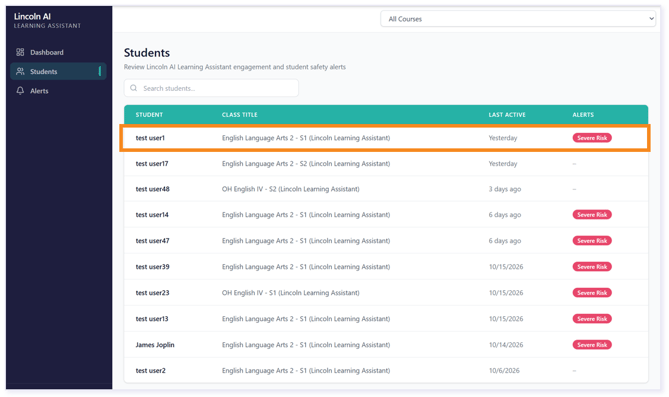
In the Students Tab, you see a grid of all student activity and alerts. Search by student name to filter the grid by student.
NOTE: If a student is actively rostered but has no sessions, their name will appear with a dash to indicate their sessions are null. If a student hasn't used the Learning Assistant yet and doesn't appear in the list, you can still search for them by name.
Click on a session row to view the student’s session history, including the alert status of each session, and recent active alerts.
Student Active Session Details
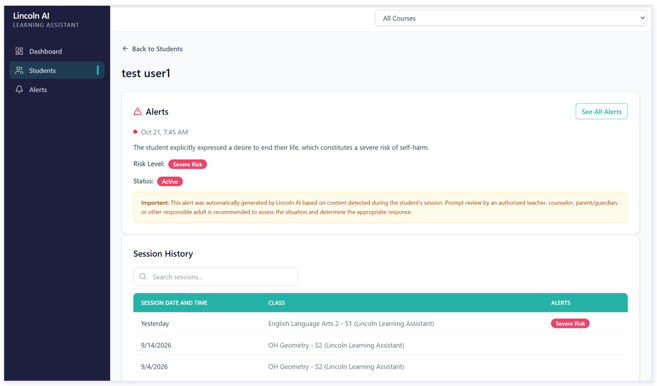
When selecting a row from the Students tab, you will see the details on all sessions and any active alerts for that student.
TIP: If the student does not have any alerts, it will look like the example below.

If your student does have an alert, it will be listed at the top of the student's record and include general details. Alerts are listed based on a heirarchy explained below in the Alert Status and Ordering section of this article.
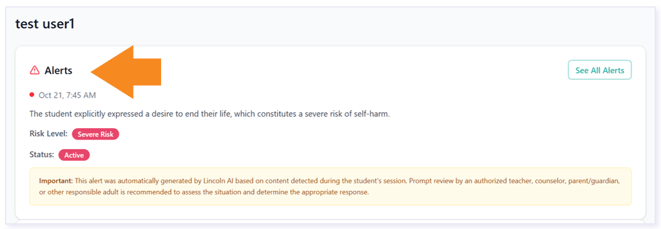
The session specific Alerts details include a synopsis, Risk Level, and Status. To learn more and confirm action, navigate to the Alerts tab or select See All Alerts.
Click here to return to the top.
Alerts Tab
The Alerts Tab serves as your hub for Alert details. This is where you can mark alerts as resolved.
The three risk alert levels are defined below:
- Severe Risk alerts are triggered by explicit suicidal or self-harm thoughts, threats to harm others, an inability to stay safe, and ongoing severe distress.
- Moderate Risk alerts are triggered by expressions of hopelessness or persistent distress, but not immediate danger.
- Low Risk alerts include mild concerning language that may be figurative but still worth monitoring.
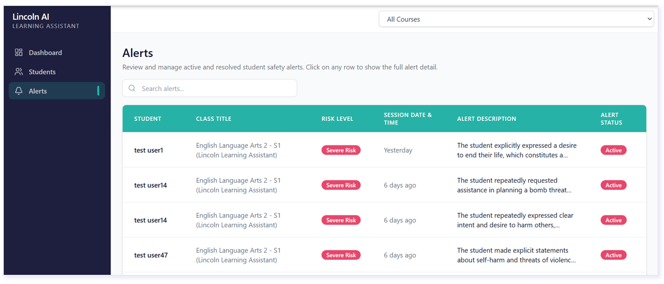
Alert Status and Ordering
Alerts are either Active or Resolved. Active Alerts identify Severe, Moderate, or Low risks that remain unresolved. Resolved Alerts have been manually resolved by any designated instructor and become archived.
The Alerts tab is organized by priority using a multi-tiered sorting system:
- Alert Status: Active alerts always appear above Resolved alerts.
- Risk Level: Within each status, alerts are ranked from highest to lowest risk (Severe, Moderate, then Low).
- Date: Alerts with the same status and risk level are ordered chronologically.
This hierarchy ensures that Active Severe alerts are always featured at the very top of your dashboard, followed by Active Moderate alerts, and so on.
IMPORTANT: When the system detects a severe risk (such as suicidal thoughts or threats of harm), an email alert is sent to the designated recipients (e.g., teacher, client contact, administrator). The alert email is not sent until after the session ends (sessions automatically time out when a student is inactive).
For moderate and low risks, the alert will appear in the dashboard but will not send an email alert. This ensures all risks are addressed appropriately.
Click here for a sample email.
NOTE: To support consistent communication, LLS teachers will reach out to the district about all severe and moderate alerts and some low-risk alerts, asking the district to confirm receipt.
Confirming Actions on Alerts
Select an alert to view more details and determine actions.
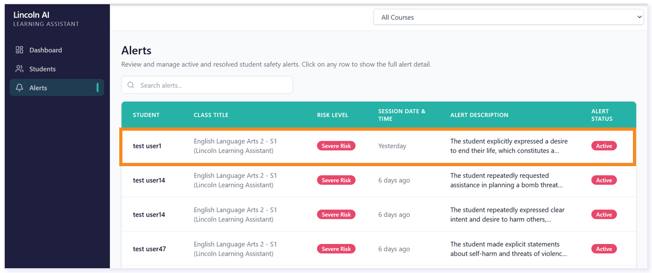
TIP: Use the Search bar to group alerts by detection level.

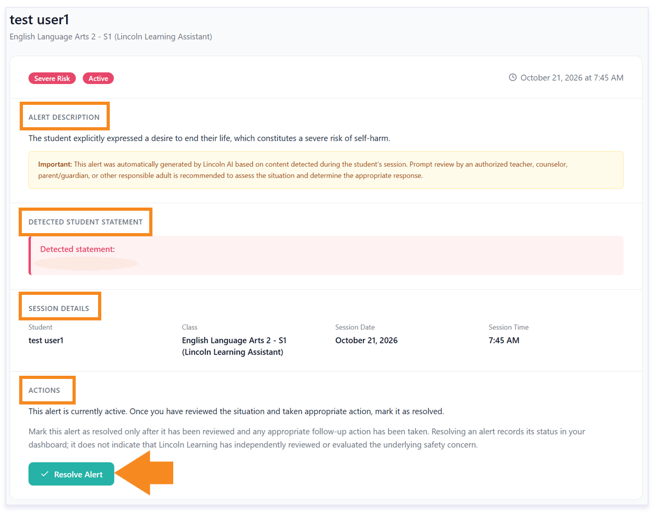
The Risk details include an ALERT DESCRIPTION, DETECTED STUDENT STATEMENT, SESSION DETAILS, and ACTIONS.
Click the Resolve Alert button once action steps are complete outside of the system, and you are ready to resolve the alert.
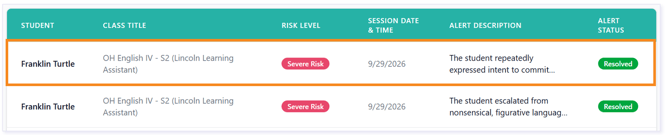
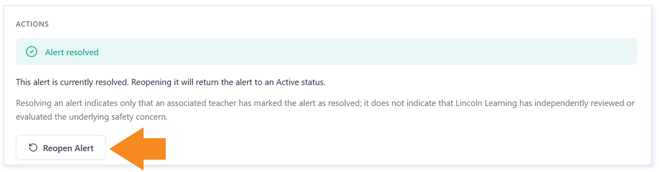
To reopen an alert, find the resolved alert in the Alerts tab and click its row to open it.
Then, click the Reopen Alert button.
Click here to return to the top.
Please note the images found in this resource may not match your screen. Access and/or features may vary based on client contract.
© 2026 Lincoln Learning Solutions. All rights reserved.