
What Is the Lincoln AI Learning Coach Teacher Dashboard?
The Lincoln AI Learning Coach Teacher Dashboard is a centralized platform compiling student usage, risk levels, and trending topics across two main tabs, Overview and User Management, to help educators provide real-time support.
Click the links to jump to the following sections:
Overview Tab
The Overview Tab is a centralized visual hub to monitor student data. It contains jump links to student statuses, an adjustable Daily usage graph, and an interactive Trending topics infographic.
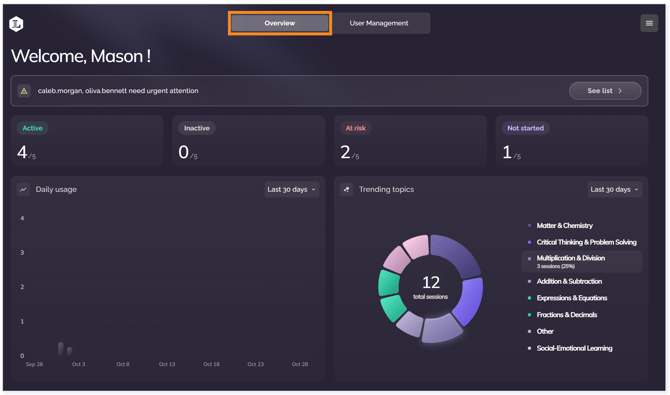
Warning
A warning message may appear at the top to identify students who have not started or have not logged in recently. Select Send reminders to nudge them to begin. This sends an email to the student.

Student Status
View the number of students in each status category—Active, Inactive, At Risk, and Not Started—or select a category to jump to the corresponding student list.

Status Category Definitions
-
Active: The learner is regularly using the platform and actively engaging in sessions.
-
Inactive: The learner has used the platform previously but has not been active recently.
-
At Risk: The learner has been flagged by our monitoring (for example, due to signs of distress or a guardrail trigger) and may require attention.
-
Not Started: The learner account has been created, but the learner has not started their first session.
Daily Usage
The Daily usage chart shows the total time all students have spent using the Learning Coach. You can view usage for the Last 7 days or the Last 30 days by selecting from the drop-down list in the top right.
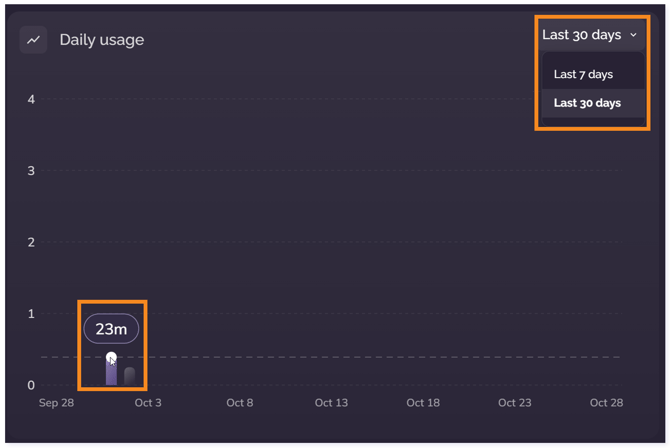
TIP: Hover over the bars to see the amount of time used on specific days.
Trending Topics
Use the Trending topics graph to see the areas where all students are focusing their learning. View the Last 7 days or the Last 30 days by selecting from the drop-down list.
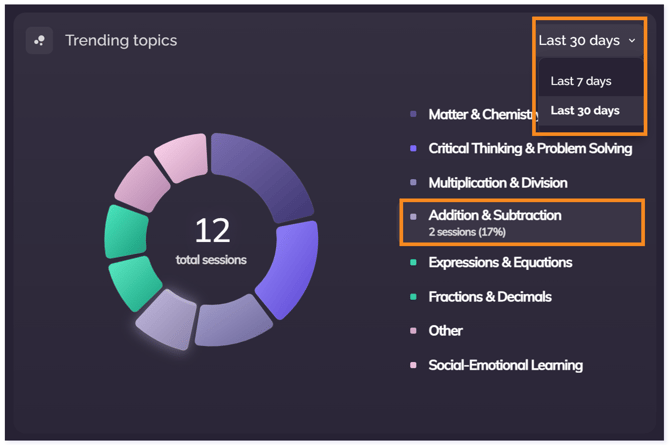
TIP: Hover over each section in the chart to view the number of sessions and the percentage of time spent on that topic.
Click here to return to the top of the page.
User Management Tab
The User Management tab gives specific information for each student.
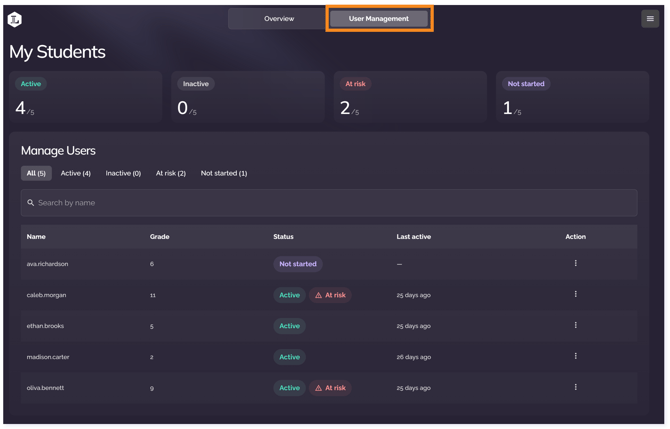
NOTE: In both Overview and Users Management, you see the status category tiles: Active, Inactive, At Risk, and Not Started. Select a status tile at the top or a tab under Manage Users to see which students are included in that category.
Individual’s Data
Click on a student’s name to open their individualized data.
At the top, the student’s Strengths, Improvement areas, and Suggested actions appear in tiles. These are AI provided analyses of student sessions.
A list of Recent Topics Covered with the student appears alongside a User Topics pie graph showing the number of sessions and percentage of time spent on each topic.
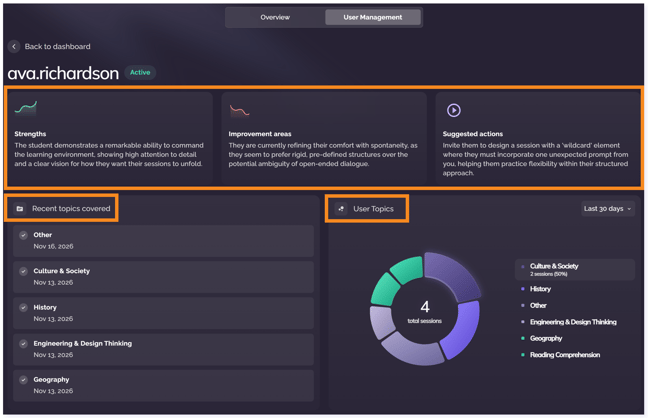
NOTE: At the top, any Alerts will be identified with details for the risk level and the option to Mark as resolved. See the At Risk section below for more details.

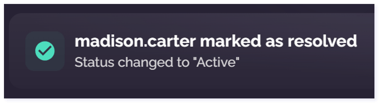
Once you click Mark as resolved you will see the following message.
TIP: Use the Back to dashboard button to return the dashboard.
Click here to return to the top of the page.
At Risk
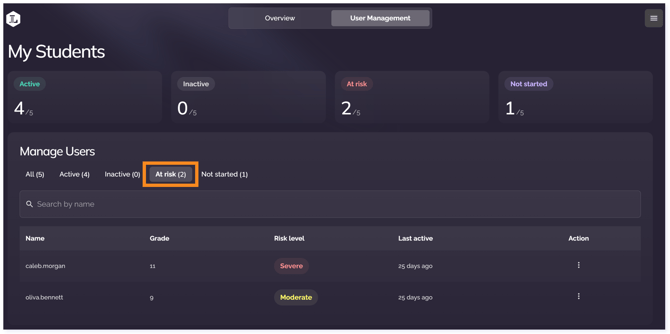
The At Risk Tab serves as your hub for alert details. This is where you can mark alerts as resolved.
The three risk alert levels are defined below:
-
Severe Risk alerts are triggered by explicit suicidal or self-harm thoughts, threats to harm others, an inability to stay safe, and ongoing severe distress.
- Moderate Risk alerts are triggered by expressions of hopelessness or persistent distress, but not immediate danger.
- Low Risk alerts include mild concerning language that may be figurative but still worth monitoring.
IMPORTANT: When the system detects a severe risk (such as suicidal thoughts or threats of harm), an email alert is sent to the designated recipients (e.g., teacher, client contact, administrator). The alert email is not sent until after the session ends (sessions automatically time out when a student is inactive).
For moderate and low risks, the alert will appear in the dashboard but will not send an email alert. This ensures all risks are addressed appropriately.
Click here for a sample email.
Click here to return to the top of the page.
Resetting a Password
Search for specific students using the Search by name bar.
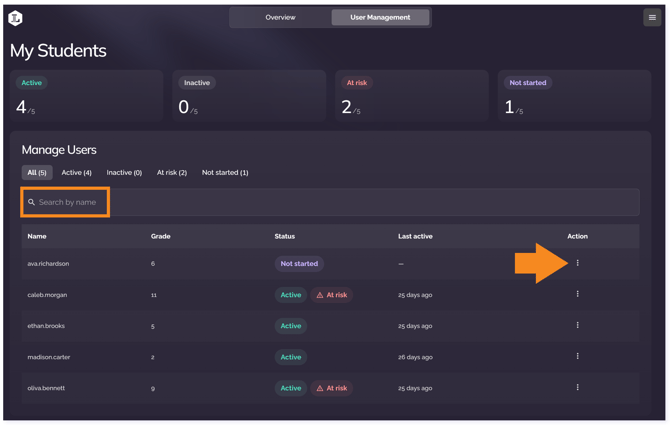
Reset student passwords by clicking the three dots in the Action column at the end of the user’s row.
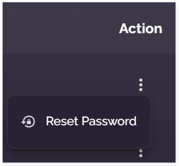
Follow the prompts to Reset the password. Then communicate the new password to the student outside the system.
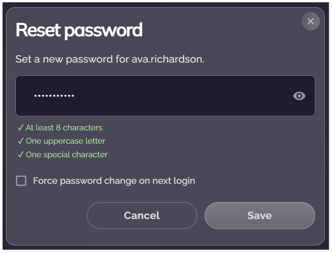
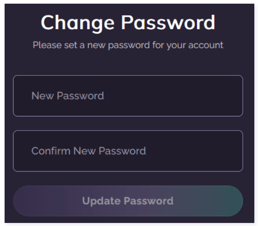
If you select Force password change on next login, the student will be prompted to change their password the next time they login.
Click here to return to the top of the page.
Additional Support
Click the three lines in the top right to access the dropdown.
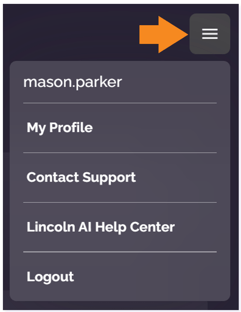
Select My Profile to see profile details and reset your password.
To submit a form for an issue or request, choose Contact Support.
Click Lincoln AI Help Center for helpful resources.
Click here to return to the top of the page.
Please note the images found in this resource may not match your screen. Access and/or features may vary based on client contract.
© 2026 Lincoln Learning Solutions. All rights reserved.