
This video gives a visual overview of the course Pacing Guide, including where to find it and how it can be skillfully used for effective teaching. Click the Play button below to get started. Or, click here for additional written directions.
Run Time: 02:44
Understanding the Pacing Guide
The Pacing Guide helps you visually understand the arrangement of your course and ways to personalize it.
The Pacing Guide outlines the entire course by listing course objectives and standard alignment. It also identifies each Module, the lessons within each module, and the learning objects within the lesson. Assessments are highlighted as well.
IMPORTANT: Regarding assessments (Assess It, Checkpoint, and Mastery), the Pacing Guide format may differ from course to course.
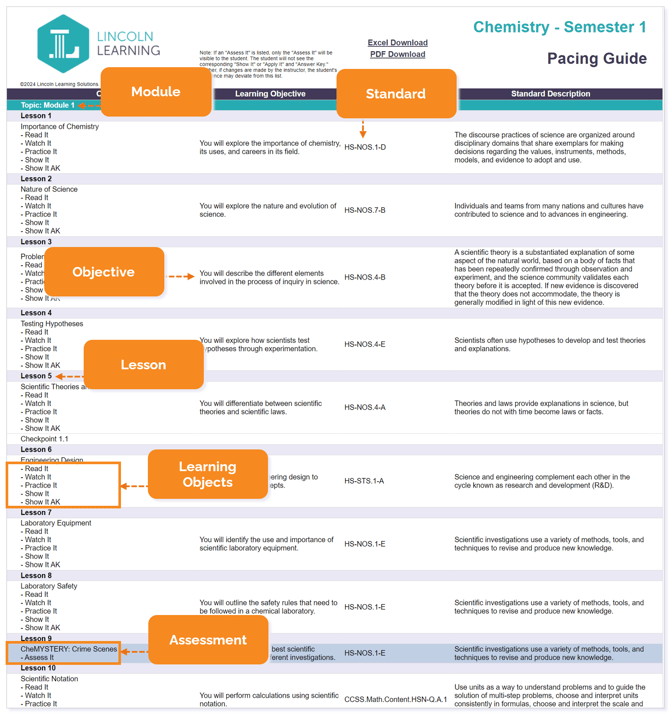
IMPORTANT: This example is from a Lincoln Empowered course, and the Pacing Guide colors may vary slightly from one product to the next.
TIP: It may take a moment for the Pacing Guide to appear as it is pulling a dynamic document. Please be patient!
Locating the Pacing Guide
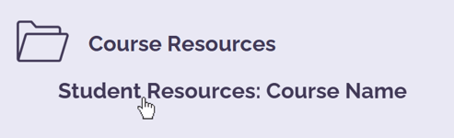
Finding the Pacing Guide is dependent on the Learning Management System (LMS) in which you are instructing. Your course Pacing Guide can be found in Course Resources within your course content.
NOTE: The Course Resources may be labeled as a unit, module, folder, etc.
From the Course Resources folder, click on Student Resources learning object.
NOTE: The Pacing Guide is also located in the Teacher Resources.
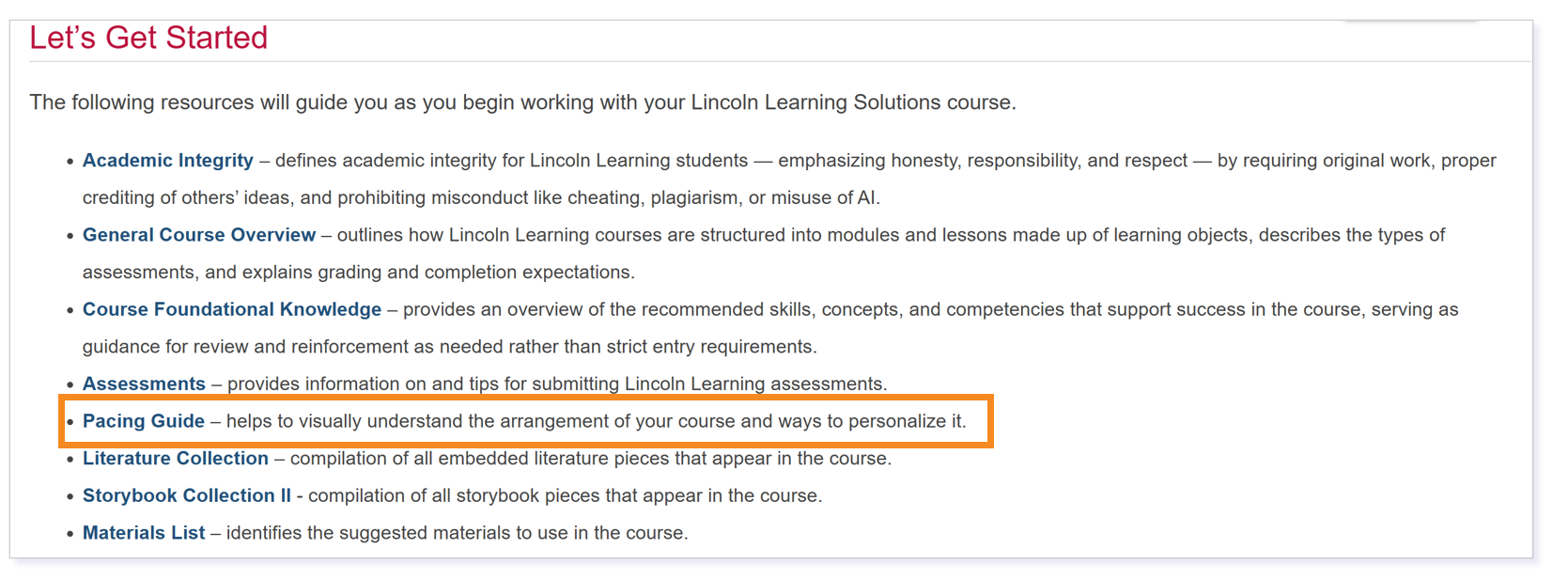
Within the Student Resources, locate the Pacing Guide link and click to open.
Utilizing Your Pacing Guide
Use your Pacing Guide to take detailed notes like keeping track of pacing adjustments or noting assignments with which students particularly struggled. To do this, select Excel Download on your Pacing Guide.

Once the Excel is downloaded, click Enable Editing.

Create a Notes column to track customizations, assessment comments, and more.
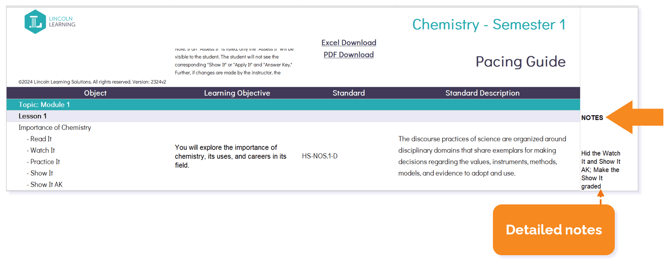
TIP: Tracking customizations will help you apply changes from year to year as well as aid you should there be any future changes or releases of the course.
Please note the images found in this resource may not match your screen. Access and/or features may vary based on client contract.
© 2026 Lincoln Learning Solutions. All rights reserved.