
What is a Pulse Data Grid?
Data grids in Pulse are organized, easy-to-navigate tools to help you view, manipulate, modify, sort, and filter important data. Data grids serve as instant reports allowing you to customize the information you would like to display and export.
Click the Play button below.
Run Time: 03:42
In this article, the following information regarding Pulse data grids is covered:
Accessing Data Grids
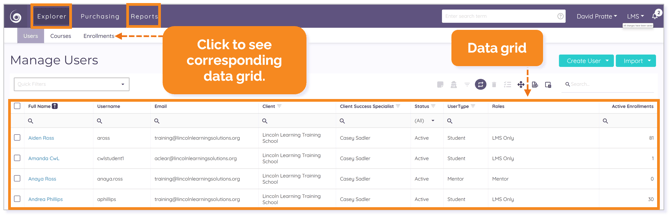
Each Explorer and Reports tab in Pulse contains a default data grid.
NOTE: For this article, we will use the Explorer tab for images and references.
Click Users, Courses, or Enrollments to see the corresponding data grid.
Data Grid Options and Controls
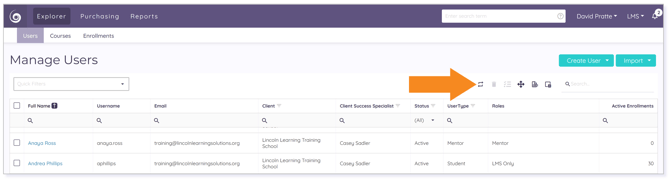
The following data grid options and control icons may be found above the data grids.

Some of the data grid options and control icons are:
NOTE: If an icon is gray, it does not function at that time. Icon functionality can change as you customize your data grid.
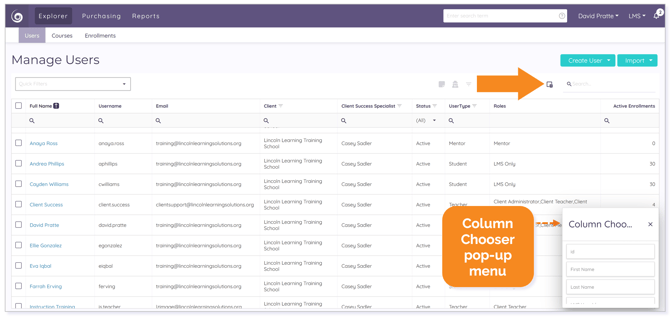
Column Chooser
Use the Column Chooser icon to personalize the columns displayed in the data grid.
Export All Data
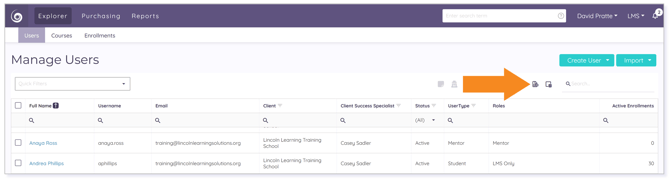
Once you have customized your columns, filtered, and sorted, you can export your selected data to an Excel spreadsheet using the Export all data icon for reporting purposes.
TIP: Use the checkbox(es) to select specific rows for exporting.
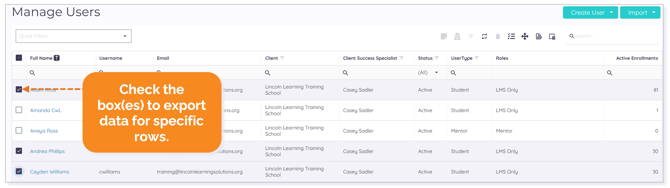
WARNING: If you don't see all expected exported data, check to make sure you haven't selected specific rows for export.
Clear All Filters
Clear filtered details at any time by clicking the Clear All Filters icon.
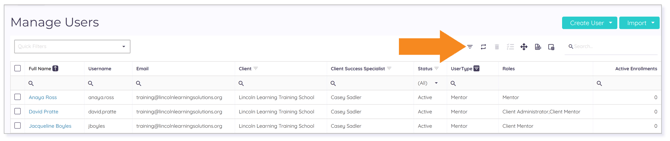
TIP: Before using any data grid, Clear All Filters to speed up navigation.
Restore Default Table Settings
Return to the default display at any time by clicking the Restore Default Table Settings icon.

Additional Data Grid Tips
To prevent lag when loading results in a data grid, set the results per page in the bottom-left to fewer than 200.

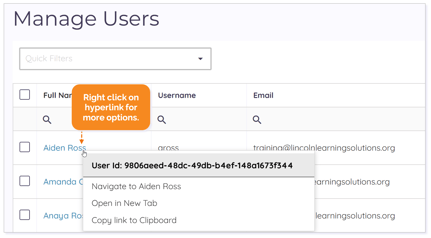
Right click on any hyperlink to populate a drop-down menu of options.
Please note the images found in this resource may not match your screen. Access and/or features may vary based on client contract.
© 2025 Lincoln Learning Solutions. All rights reserved.