
Click the play button to watch the video Learning Coach Basics.
Click the links to jump to the sections.
Coaches
When you first login, you will be prompted to Pick a learning coach.
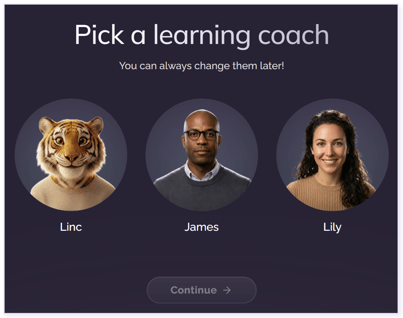
IMPORTANT: You are only prompted to select a Learning Coach upon first login. This Learning Coach will persist until you decide to switch coaches.
Switching Coaches
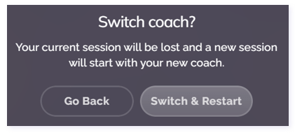
If you decide to switch your Learning Coach once you start a conversation, you can select the three lines at the top right. Next, click Switch coach.
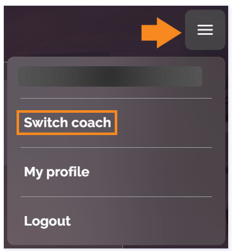
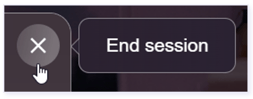
WARNING: Switching coaches during a conversation will result in restarting your conversation. If you want to Download this chat, please End session first.
Next, click on the image of the coach you would like to use and click Switch coach.
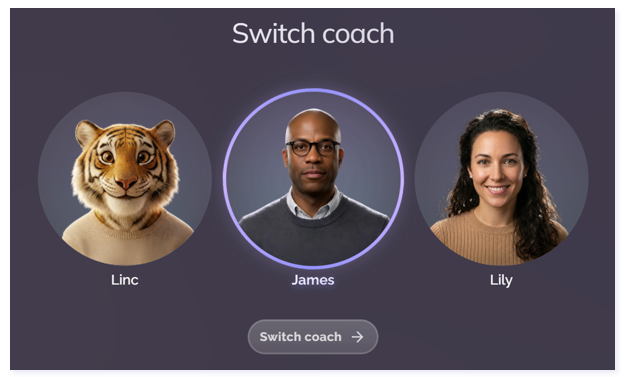
IMPORTANT: When you switch coaches, you will need to Switch & Restart to apply your selection.
Click here to return to the top of the article.
Talk vs Text
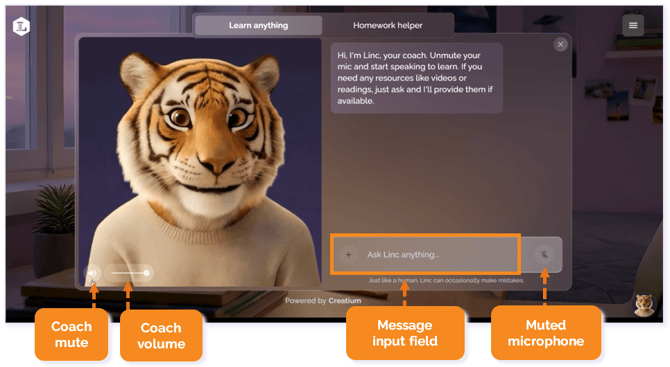
The Learning Coach will start the conversation. You can then speak into the microphone or type to respond.
First Reply
Your first reply with a clear browser history will prompt you to initiate your audio settings. If you select “Allow this time,” your browser will prompt you again on each visit.
IMPORTANT: Depending on your browser and device, this experience will vary.
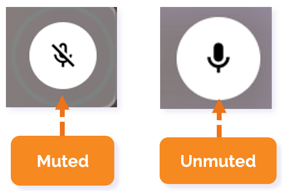
By default, your microphone will be automatically unmuted to reply.
NOTE: You must click the microphone button to mute yourself, or audio will be transcribed.
WARNING: Depending on the sensitivity of your microphone, background audio, in addition to your own, may be captured.
TIP: Use the controls in the bottom‑left corner to mute the coach’s audio or adjust the volume.
Talk
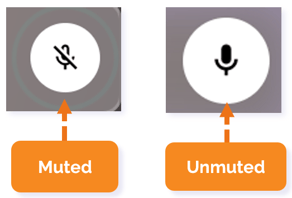
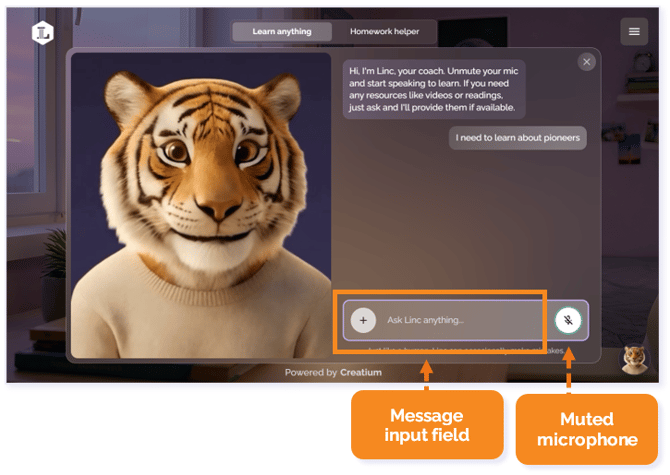
To talk, ensure your microphone icon is not muted.
Text
To reply using text, make sure your microphone is muted and begin typing in the message input field. Then press Enter.
Click here to return to the top of the article.
Tabs
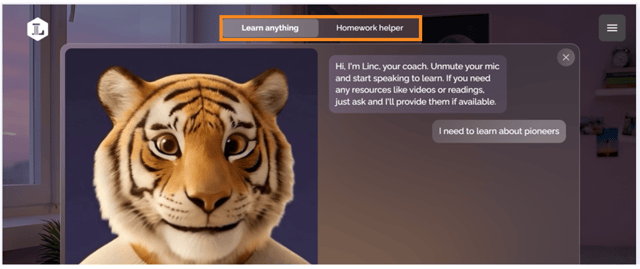
There are two main tabs available within the Lincoln AI Learning Coach: Learn anything and Homework helper.
- The Learn anything prompt encourages students to pose content-related questions and engages with them collaboratively to support their current learning level and deepen their understanding.
- The Homework helper prompt instructs students to begin by submitting their homework. Students then concentrate on a particular question and work jointly with the Coach to complete the assignment. (See Homework Helper section for details.)
Learn Anything Tab
The Learn anything tab is the default tab when you open the Learning Coach. It is useful when you are curious to learn about a topic or need help reviewing concepts.
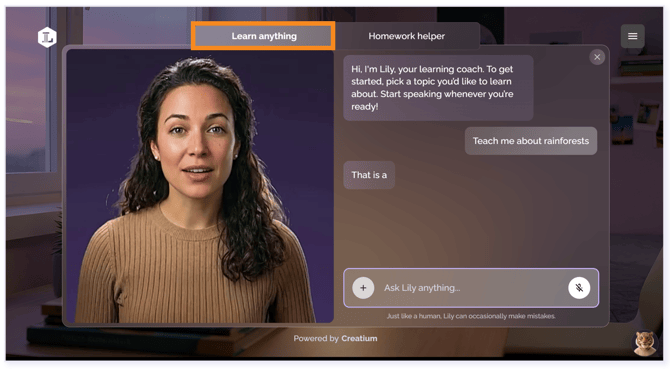
Begin by asking questions about the topic and the Learning Coach will respond to narrow your focus.
Some sentence starters you can begin with are:
- I am curious about ….
- Can you help me review ….
To learn more about effective communication with Lincoln AI, including tips by grade level and subject area, power phrases, and accessing Lincoln Learning resources, see Communicating with Lincoln AI.
Switching Tabs
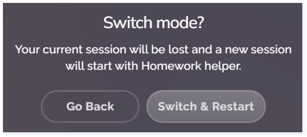
WARNING: Switching tabs during a conversation will result in restarting your conversation. If you want to Download this chat and view what you learned, please End session first.
IMPORTANT: When you switch tabs, you will need to Switch & Restart to launch another mode.
Homework Helper Tab
You will be prompted by your Learning Coach to upload your homework assignment when you click on the Homework helper tab.
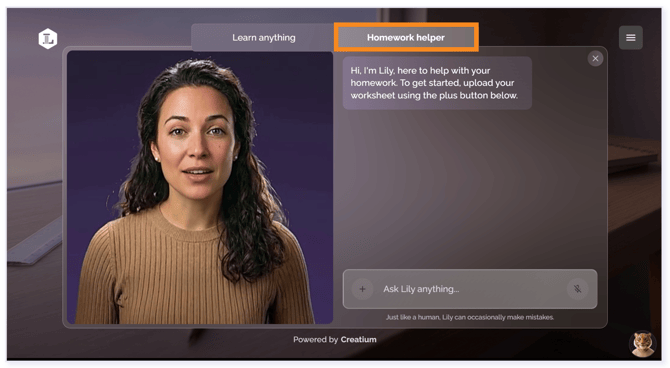
Click the plus ( + ) button to the left of the message input field then select Upload file.
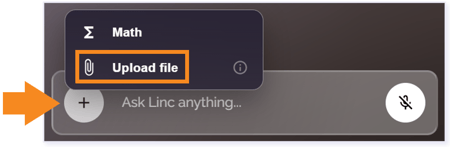
TIP: File uploads must be PDF, PNG, JPG up to 10MB or max 10 pages for PDF. These details are found in the i icon.
Next, navigate to and select the file you want to upload and then click the send button.
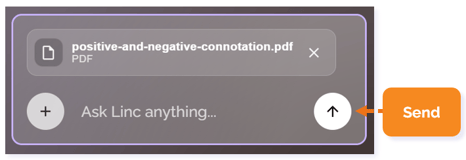
TIP: The Upload file button is also available in the Learn anything tab, but Homework helper is designed specifically for supporting assignments.
Your Learning Coach will ask where you want to start in your upload. You do not have to start at the beginning or at number one.
Click here to return to the top of the article.
Ending Session
You are encouraged to use the End session button so that you can recap what you learned and download a transcript for future reflection.
To end a session, select the x in the upper right corner of your conversation.
Next, you will confirm you want to end the session by clicking End session in the pop-up.
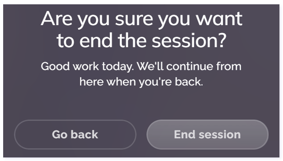
Once you have confirmed that you want to end the session, you will see your Lesson complete! details. You will see a recap of what you learned and the option to Download this chat. Clicking on this will download a transcript of your conversation with your Learning Coach.
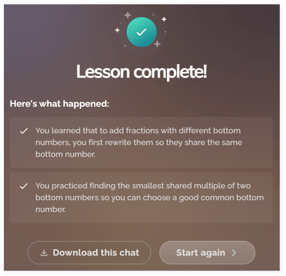
To start a new chat, select Start again.
Click here to return to the top of the article.
Get Support
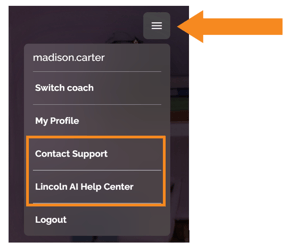
Need help? Use Contact Support to submit a support ticket. You can also explore the Lincoln AI Help Center for articles, tips, and resources designed to support your use of Lincoln AI.
Start by clicking on the navigation icon (three lines) in the top right. Next, you can select Contact Support or Lincoln AI Help Center.
Contact Support
Contact Support opens a form where you can submit questions, requests, or report issues.
When completing the form:
- First Name, Last Name, and Email Address are required.
- Phone Number is optional.
- You must identify your role in the system.
- School Name and Category are optional fields.
- Subject and Description are required to help our team understand your request.
- You may also attach a supporting file (such as a screenshot or document) to provide additional context and help our team resolve your issue more efficiently.
- Click Submit when finished.
Helpful tips before submitting:
- Include a clear description of your request or issue
- Share any relevant details (account name, what you were doing when you encountered your issue, etc.)
- Attach screenshots or examples when applicable
Once submitted, your request will be routed to the appropriate support team member, and you will receive a confirmation and follow-up.
Click here to return to the top of the article.
Please note the images found in this resource may not match your screen. Access and/or features may vary based on client contract.
© 2026 Lincoln Learning Solutions. All rights reserved.