
Getting Started with Lincoln AI
For general information, check out the Lincoln AI Overview article for a helpful introduction and how it can support your learning.
Click Play to watch the Learning Assistant Basics Video.
The following sections in this article are here to guide you on how to easily use Lincoln AI. They’ll show you how to get started, use the different features, and make the most of Lincoln AI to help with your learning.
Accessing Lincoln AI
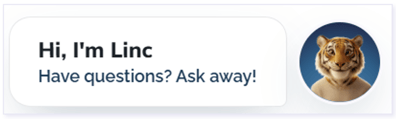
- Click the Lincoln AI button found in the bottom right corner of the learning object screen.
- Choose Text or Video to interact.
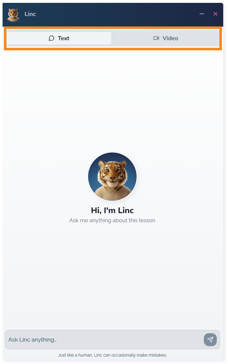
- For the Text mode, begin typing questions to start your conversation.
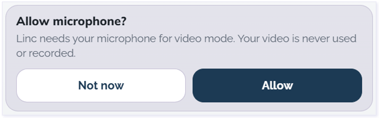
- If you choose Video mode, you may be prompted to allow the microphone to be enabled. Once enabled, you may begin asking questions using the microphone.
- The session will need to be restarted if five minutes or more have lapsed and the previous conversation will be erased.
- Session summary and transcripts downlaods are available when you close the session with the X.
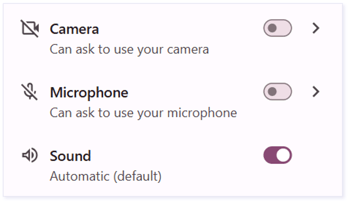
IMPORTANT: You may need to adjust your microphone and sound settings to interact with the video mode of the Learning Assistant.
Interface Features
Find the features of the Lincoln AI interface with the corresponding numbers to help you use its tools.
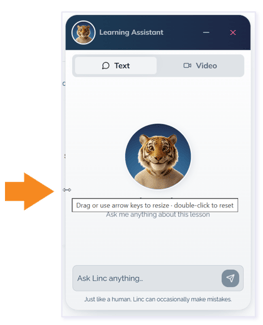
TIP: Drag the Learning Assistant window to move it. Hover over the top-left corner and use the arrows to resize the screen.
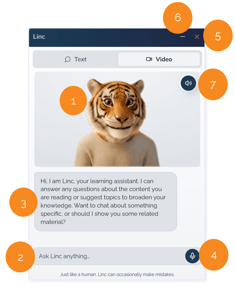
- Learning Assistant (Linc): Meet Linc, the Lincoln Learning Assistant. In Text mode, Linc is displayed as a static image. In Video mode, Linc is animated and provides audio responses.
- Message Input Field: Enter your questions or comments here. In Text mode, this is the primary way to interact with the Learning Assistant. In Video mode, you can use this field when your microphone is muted.
- Response Field: View the Learning Assistant's responses. In Video mode, the text shown here corresponds with the audio response provided by the Learning Assistant.
- Microphone: Use your voice to interact with the Learning Assistant. In Video mode, the microphone must be unmuted (no slash displayed) to capture your voice. This is not a feature of the Text mode. NOTE: The microphone will pick up all audio. Turn it off while listening to a response so it doesn’t pick up unintended words.
- End Session (X): End your current session. You will have the option to download a session summary and transcript.
- Minimize Session (-): Minimize the Learning Assistant window and return to your session later, provided you remain in the learning object and return within five minutes.
- Mute Learning Assistant: Control the Learning Assistant's audio responses. In Video mode, the Learning Assistant will speak when unmuted. A slash indicates that audio is muted. This is not a feature of the Text mode.
WARNING: If the SpeechStream bar covers a Learning Object, drag and drop the bar to uncover it.
Moving and Resizing Learning Assistant Modal
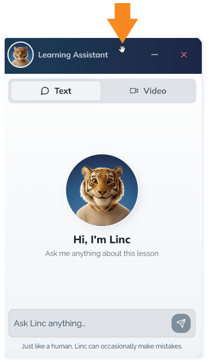
Hover and click over top bar to drag and drop the modal to another part of your screen.
Hover and click left side of the modal to expand the window.
Tips
Here are a few question ideas you might be able to use when interacting with Lincoln AI to help you learn the content.
- Can you summarize the lesson?
- What are some tricky parts of the lesson?
- Can you break down the steps for _______?
- Give me some additional problems to work through.
To learn more about effective communication with Lincoln AI, including tips by grade level and subject area, power phrases, and accessing Lincoln Learning resources, see Communicating with Lincoln AI.
Click here to return to the top of the article.
Please note the images found in this resource may not match your screen. Access and/or features may vary based on client contract.
© 2026 Lincoln Learning Solutions. All rights reserved.